
Text (double-click to edit). Lorem ipsum dolor sit amet, consectetur adipiscing elit, sed do eiusmod tempor incididunt ut labore et dolore magna aliqua.
HOME | ABOUT | BUY-NOW | HOW IT WORKS | INSTALL INFO | Q & A | CHANNELS | PRIVACY | CONTACT

How to Install Downloader app on Firestick
*Note: We are using a Firestick 4k in the screen shots. However this method will work on other firesticks, Fire Tv and other android devices
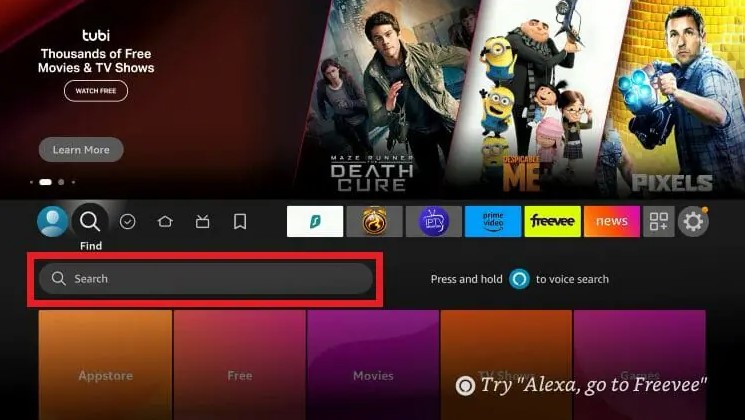
1. From the home screen of your device, hover over the Find button and then click the Search box.
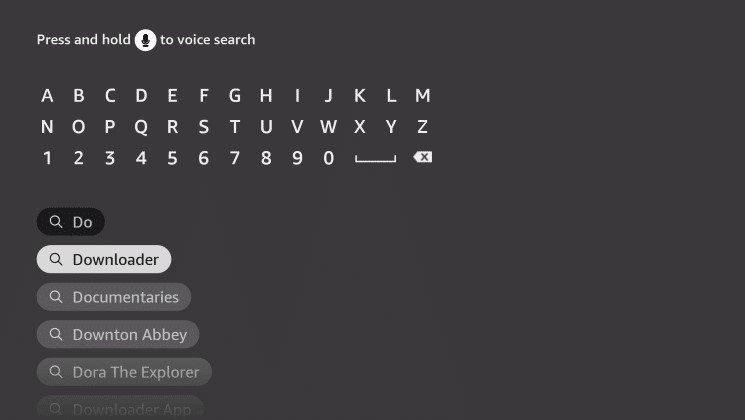
2. Once you click on the searchbox you will see this screen, select the letters to spell down and then select "Downloader" from the options listed.
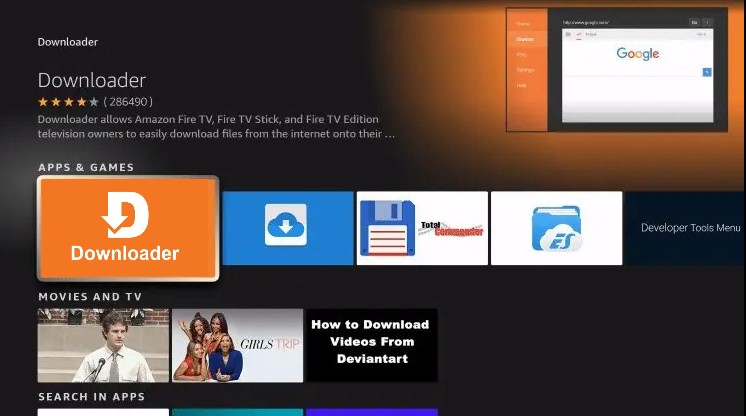
4. Choose the Downloader app as shown in picture. Make sure it is the Downloader app by AFTVnews.com
5. Click on download
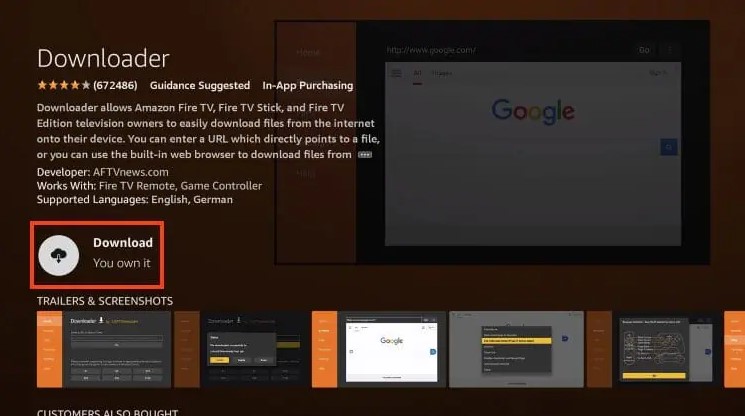
6. Wait for app to install
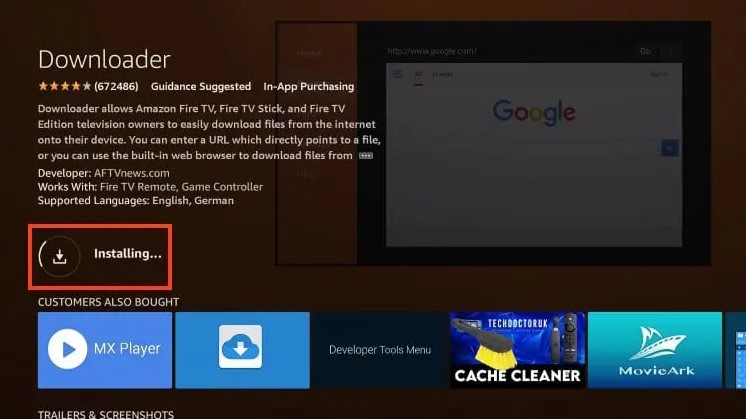
7. After install click on Open
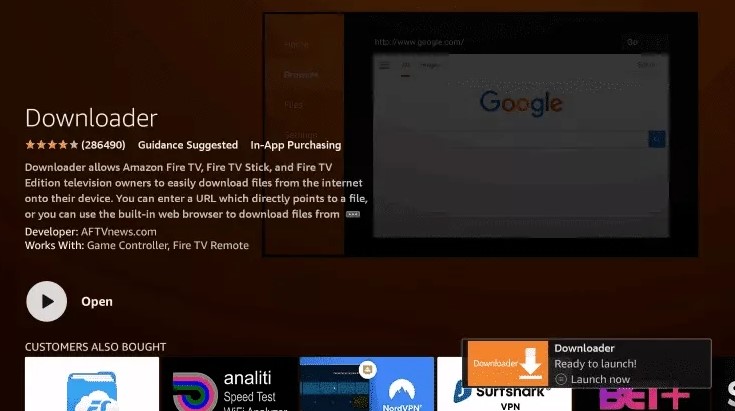
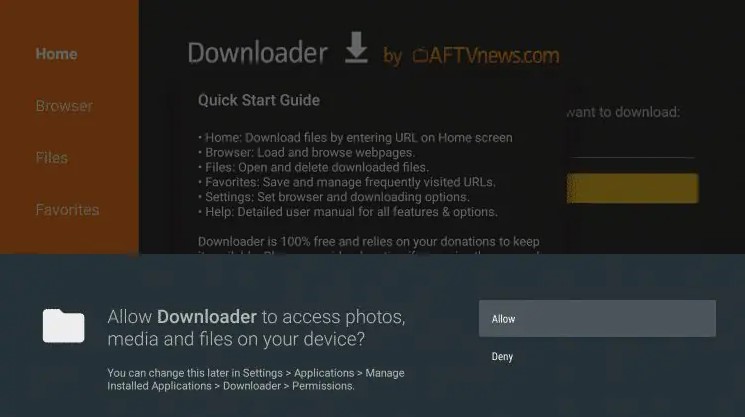
14. After Launch allow access to photos, media and files.
15. Click ok to Quick Start Guide info
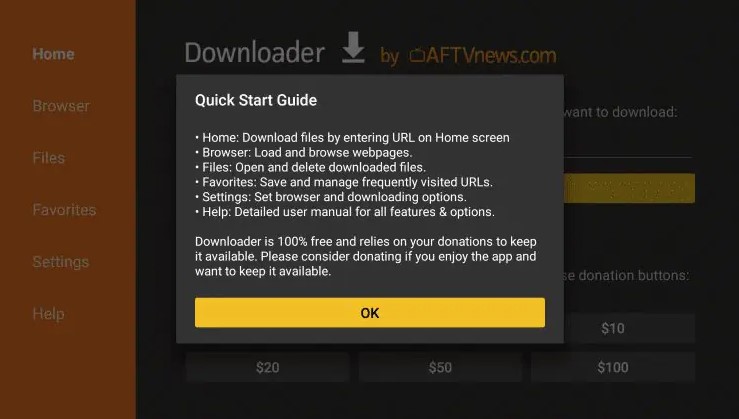
10. Now you are ready to enter the URL or Download code per your install instructions.
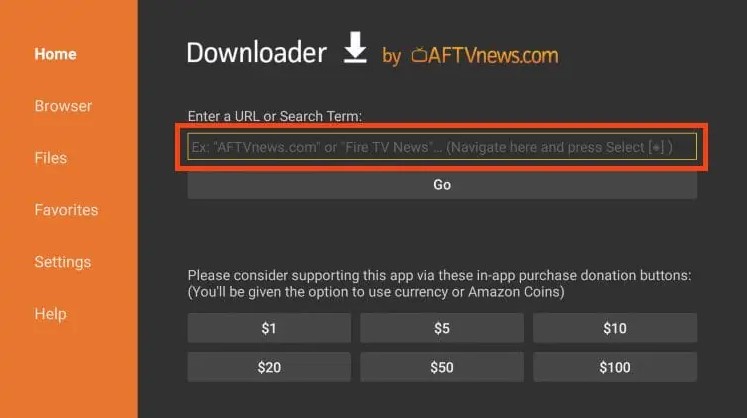
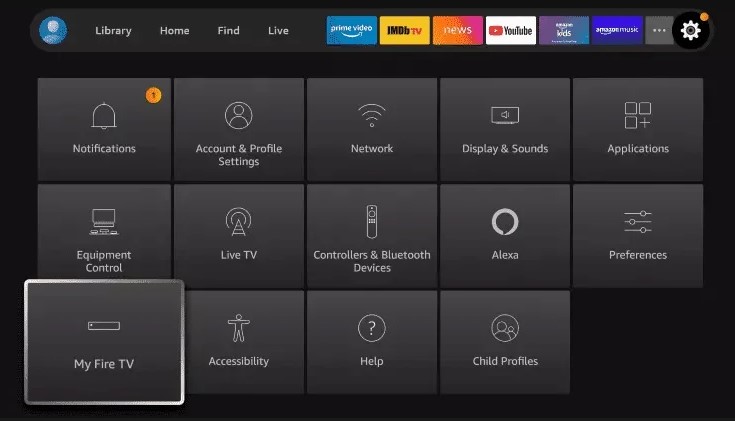
8. Now press the Home button on the Remote, Then go all the way right and open the Settings area. Then select My Fire Tv
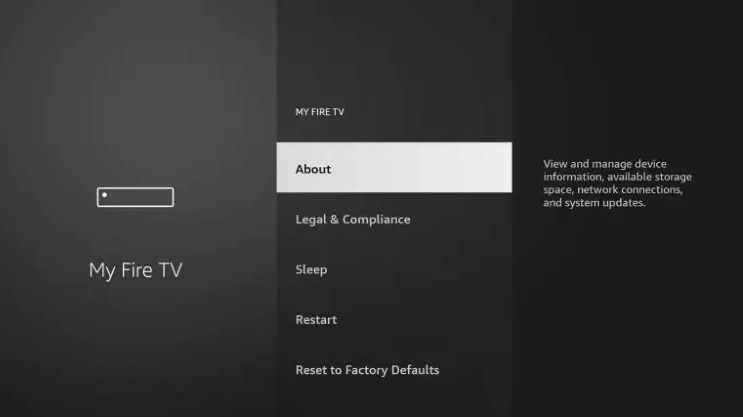
9. Then you will you should see the screen below. If you do not have Developer options on this list then click on "About".
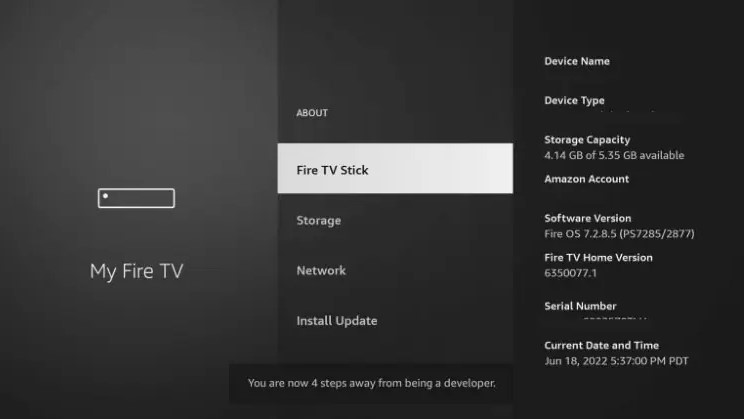
10. Select "Fire Tv Stick" and click the ok / enter button on your remote 7 times or until is says you are now a developer
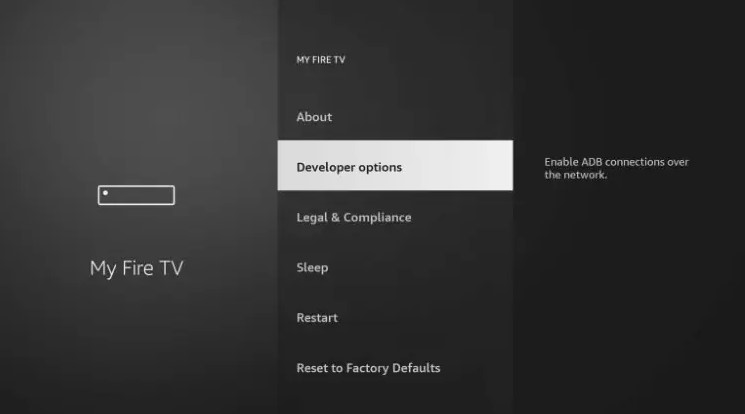
11. Hit the back or return button on your remote and you should see the Developer option in the list as shown below.
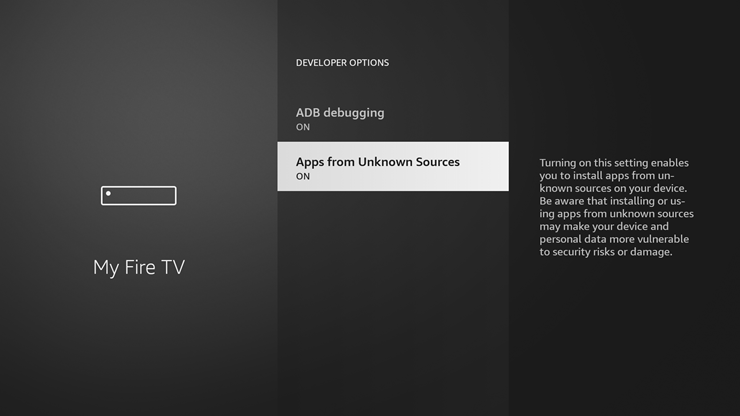
12. Open Developer options and please turn on both ADB debugging and Apps From Unknown sources.
13. Now open the Downloader app. You should be able to find it your applications section or in your recently used apps.
16. Now your Downloader app is ready.
HOME | ABOUT | BUY-NOW | HOW IT WORKS | INSTALL INFO | Q & A | CHANNELS | PRIVACY | CONTACT