
Text (double-click to edit). Lorem ipsum dolor sit amet, consectetur adipiscing elit, sed do eiusmod tempor incididunt ut labore et dolore magna aliqua.
HOME | ABOUT | BUY-NOW | HOW IT WORKS | INSTALL INFO | Q & A | CHANNELS | PRIVACY | CONTACT

MaxTv41 App Settings and Navigation.
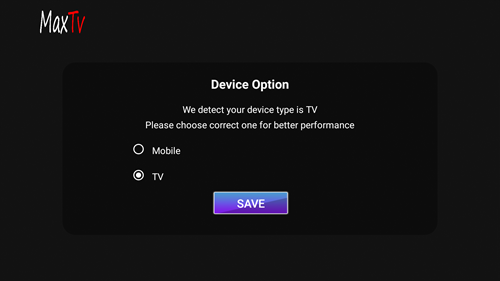
1. Open the MaxTv app. Choose device option and click on SAVE.
2. Enter your user name and password then select ADD USER.
3. Download channels, Movies, Series and TV Guide - Click enter and let Live Tv section download/update. Then select Movie section and click enter to download/update Movies. Then select Series section and click enter to download/update Series.
5. Sort Channels - From the main page of the MaxTv app select the LIVE TV section. While in this section move all the way to the top, then move all the way to the right to select the 3 dots Menu. Move down to SORT and click enter. Select the A-Z method (recommended) then save selection
6. Sort Movies - From the main page of the MaxTv app select the Movies section. While in the "Movie" section move all the way to the top, then move all the way to the right to select the 3 dots. Move down to Sort and click enter. Select the "Recently added" method (recommended) then save selection. Same for Series section.
4. Recommended Settings - Select the SETTINGS section and click enter. Go to General Settings area. Uncheck the AutoStart on Bootup, then click save, then back. Next go to Automation area. Change the Auto-Update Live, Movies and Series to update every day (recommended), then Save Changes. Then press return on the remote to go back to the main page of the Maxtv app.
7- Select channels / Folders - From the Main page of the MaxTv app click enter on "Live TV" section to open channel/folders lists. Select folder (category) and then you will see a list of channels to view. Highlight channel and hit enter to view. Click enter again to view full screen. Use the return button on the remote to return to the channels / folders page.
8- Save Channels to Favorites folder - Go to the Live Tv section, then select the folder you want, then in the list of channels highlight the channel you wish to save, then hold down the enter /select button on your remote until you see the small menu next to the channel and select add to favorites. To remove just repeat the process. Saved channels will be available from the Favorites folder.
9- Parental Controls- From the Main Maxtv page go to "SETTINGS" section and click enter. Then find the parental controls section and click to open. Once open you will be promted to add a password. Recommed using something real simple like 11111 easy to set up. When you click on the first password section it will bring up numbers in a round wheel format. This represents the round directional button on the Firestick remote. So, to do a 11111 password click the top of the circle on the remote 5 times, then press the return button and then click the top of the wheel again 5 times to re inter the password. Then press the return button again, then select SAVE. Then when you return to the parental controls you will be able to enter and choose the folders that you wish to lock out. You can only lock out folders, not single channels.
HOME | ABOUT | BUY-NOW | HOW IT WORKS | INSTALL INFO | Q & A | CHANNELS | PRIVACY | CONTACT
10- Refresh Channels, Movies, Series and TV Guide - From the Main screen of the app highlight LIVE TV. Then go down to highlight the bottom portion, then press enter to refresh and download the latest information. You can then do this for the Movies and Series sections as needed.